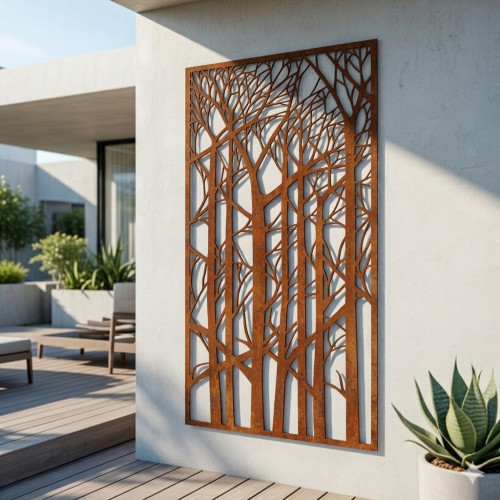
 Garden
 Japanese
 Monograms
 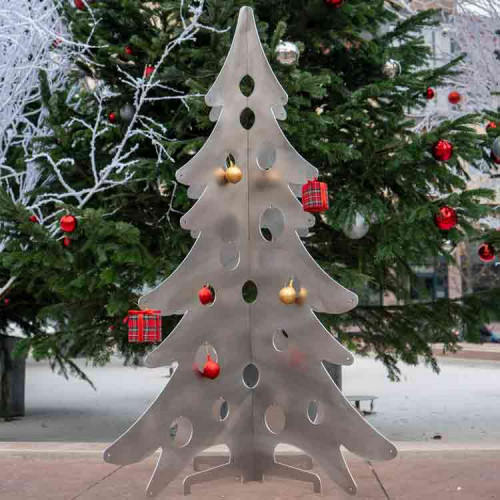 Metal Christmas tree
  Manhole
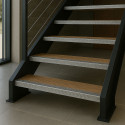 Stair
Stair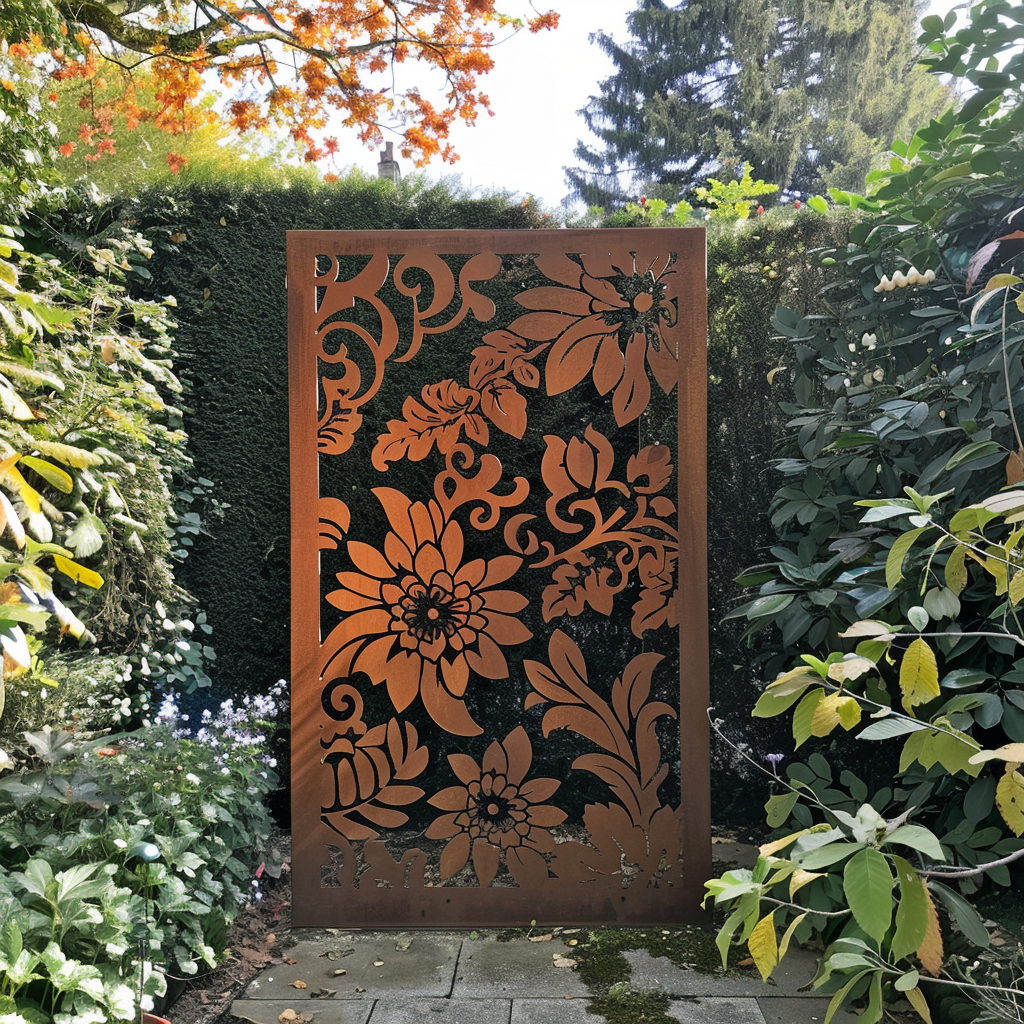

 Wall
Wall Custom
 Christmas
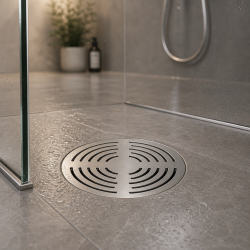 Shower
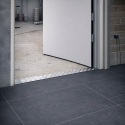 Door
Door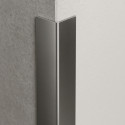 Metal
Metal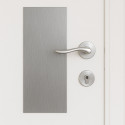 Door
Door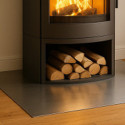 Floor
Floor
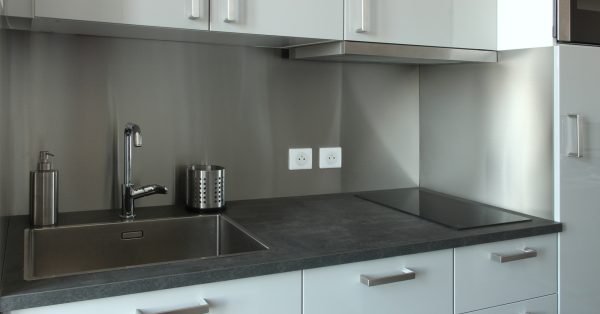
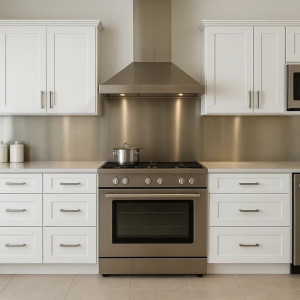 Custom-made stainless-steel kitchen splashback
 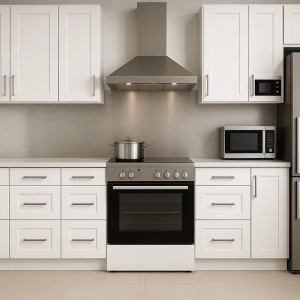 Custom-made aluminium kitchen splashback
  Custom-made stainless-steel cooker hood splashback
 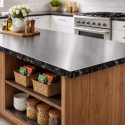 Flat cladding for a made-to-measure brushed stainless-steel worktop
 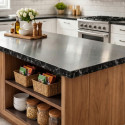 Flat cladding for a made-to-measure raw stainless-steel worktop
 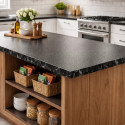 Flat cladding for a made-to-measure leather-textured stainless-steel worktop
 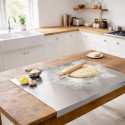 Stainless-steel pastry board with fold
 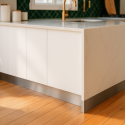 Made-to-measure brushed aluminium kitchen plinth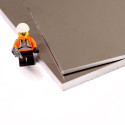
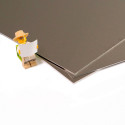
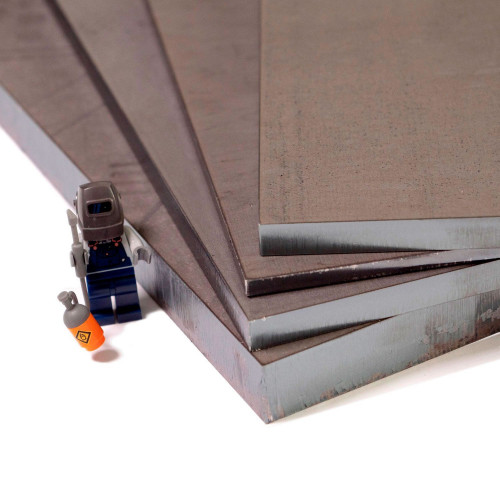
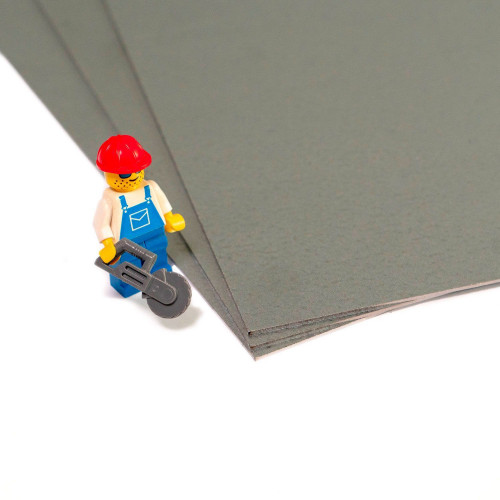
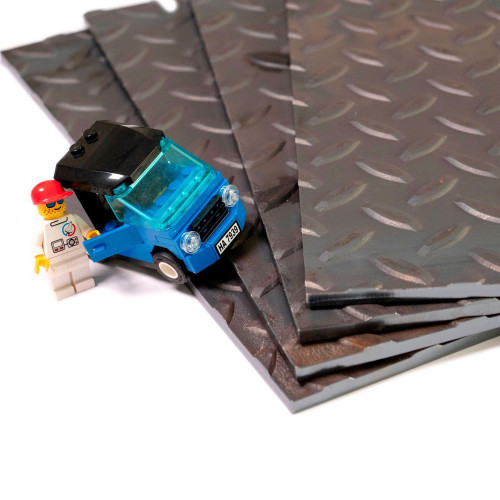
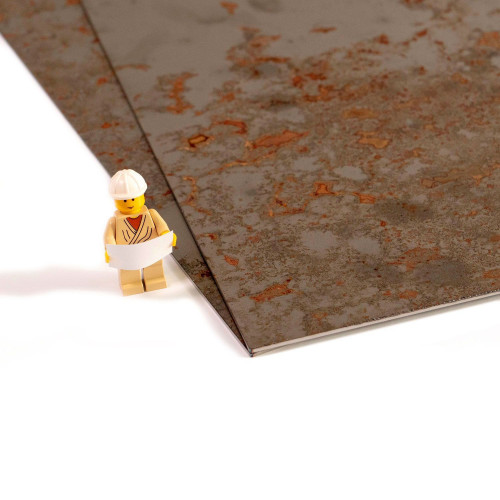
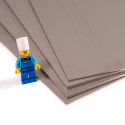
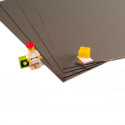
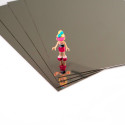
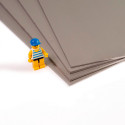
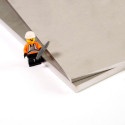
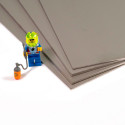
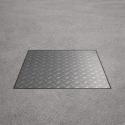
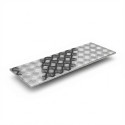 Custom-made chequer plate stainless steel flat bar
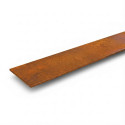 Custom-made Corten steel flat bar
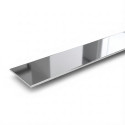 Custom-made mirror finish stainless steel flat bar
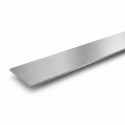 Brushed stainless steel flat bar
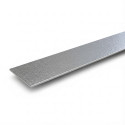 Leather-textured stainless steel flat bar
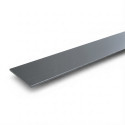 Anodised aluminium flat bar
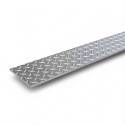 Custom-made chequer plate aluminium flat bar
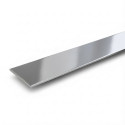 Raw and bright stainless steel flat bar
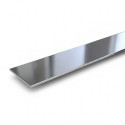 Magnetic stainless steel flat bar
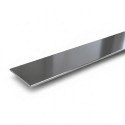 Raw and bright marine-grade stainless steel flat bar
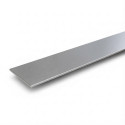 Raw stainless steel flat bar
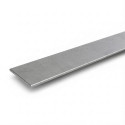 Raw marine-grade stainless steel flat bar
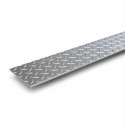 Chequer plate steel flat bar
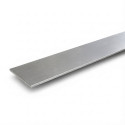 Raw aluminium flat bar
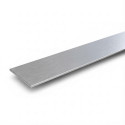 Brushed anti-fingerprint aluminium flat bar
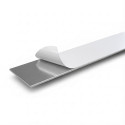 Raw film-coated aluminium flat bar
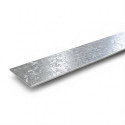 Custom-made galvanised steel flat bar
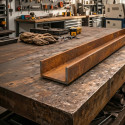 Custom-made Corten steel U-channel
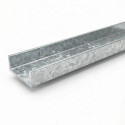 Custom-made galvanised steel U-channel
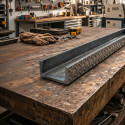 Chequer plate steel U-channel
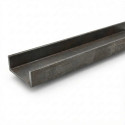 Custom-made raw steel U-channel
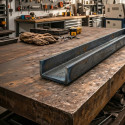 Raw steel U-channel
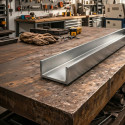 Custom-made brushed stainless steel U-channel
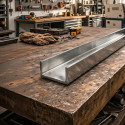 Custom-made raw and bright stainless steel U-channel
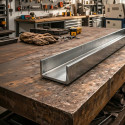 Custom-made magnetic stainless steel U-channel
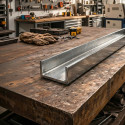 Custom-made raw and bright marine-grade stainless steel U-channel
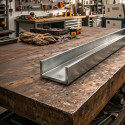 Custom-made raw stainless steel U-channel
 Custom-made raw marine-grade stainless steel U-channel
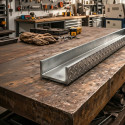 Custom-made chequer plate stainless steel U-channel
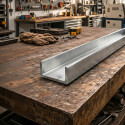 Custom-made raw aluminium U-channel
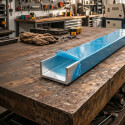 Custom-made raw film-coated aluminium U-channel
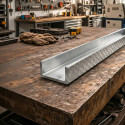 Custom-made chequer plate aluminium U-channel
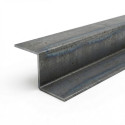 Raw steel Z-section
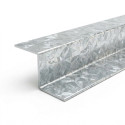 Custom-made galvanised steel Z-section
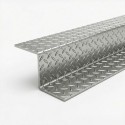 Chequer plate steel Z-section
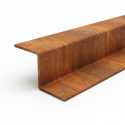 Custom-made Corten steel Z-section
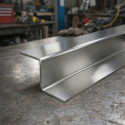 Custom-made brushed stainless steel Z-section
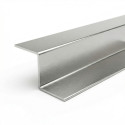 Custom-made raw and bright stainless steel Z-section
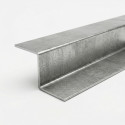 Magnetic stainless steel Z-section
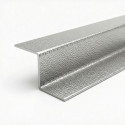 Custom-made leather-textured stainless steel Z-section
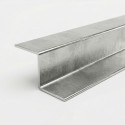 Custom-made raw and bright marine-grade stainless steel Z-section
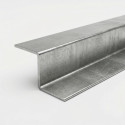 Custom-made raw stainless steel Z-section
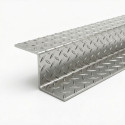 Custom-made chequer plate stainless steel Z-section
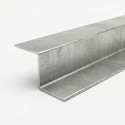 Custom-made raw aluminium Z-section
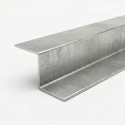 Custom-made raw film-coated aluminium Z-section
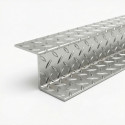 Custom-made chequer plate aluminium Z-section
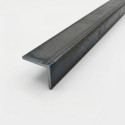 Custom-made raw steel L-angle
 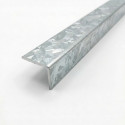 Galvanised steel L-angle
 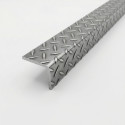 Chequer plate steel L-angle
 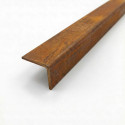 Custom-made Corten steel L-angle
 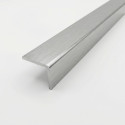 Custom-made brushed stainless steel L-angle
 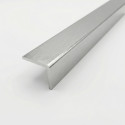 Custom-made raw and bright marine-grade stainless steel L-angle
 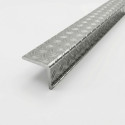 Custom-made chequer plate stainless steel L-angle
 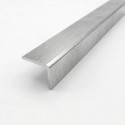 Custom-made raw aluminium L-angle
 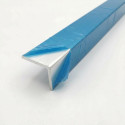 Custom-made film-coated raw aluminium L-profile
 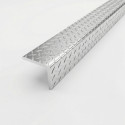 Custom-made aluminium chequer plate L-profile
 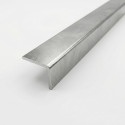 Magnetic stainless-steel L-profile
  Brushed
 Brushed
 Chequer plate
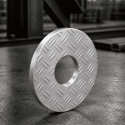 Chequer plate
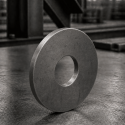 Brushed
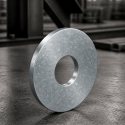 Galvanised




Uploader
Glissez et découpez vos plans techniques (Format DXF ou STEP)
Vos plans découpés
et livrés en quelques clics
 Souris en main, il vous suffit de glisser et déposer vos fichiers DXF pour les faire découper en toute simplicité !
 Aussitôt réceptionnés, nous analysons et vérifions vos plans. En un clin d’oeil, les micro-erreurs sont corrigées. Grâce à l’éditeur, les erreurs plus importantes peuvent être directement réctifiées !
 Aussi rapide que l’éclair, vos plans sont instantanément chiffrés. Les prix sont mis à jour en temps réels même après d’éventuelles modifications.
Ça répond à la question ?
Retrouvez les réponses à vos questions les plus fréquentes sur notre boutique en ligne.
You can upload your technical files in DXF, STEP or STP format. A DXF file contains the 2D drawing of a part intended for laser cutting. STEP and STP files contain a 3D model, particularly for metal parts with bends. Export your part from your CAD software in the format that suits your project.
Drag and drop your DXF or STEP file into the upload area, or click to select it from your computer. Once the drawing has been analysed, configure your part using the available options, including material and thickness. You get an instant price before ordering your custom metal part.
For a walkthrough, read our getting started guide for ordering laser-cut parts from a DXF file.
Prepare your drawing at a 1:1 scale, in millimetres: 1 mm in the file must correspond to 1 mm on the finished part. Close all contours and remove duplicate lines, unwanted intersections, dimensions and construction lines. Keep only the geometry to be cut, and check that the details are suitable for the metal thickness.
If you use SketchUp, follow our tutorial on exporting a DXF file from SketchUp.
Check that your file is in DXF, STEP or STP format. For a DXF file, pay particular attention to the units, scale, closed contours and overlapping lines. If the displayed dimensions do not match your drawing, check your software’s export settings. Then correct the file and upload it again.
Our article on identifying errors in DXF drawings explains how to understand the detected issues.
Yes, your drawing is automatically analysed and checked after upload. Some minor errors are corrected by the tool, while larger issues may require changes in the online editor or your CAD software. Before ordering, check that the displayed shape and dimensions match the part you want manufactured.
The online editor lets you correct certain errors in your uploaded drawing. The price updates in real time after changes processed by the tool. If the correction is beyond the editor’s capabilities, modify the original file in your CAD software and upload the new version.
Don’t have a technical file, or find creating one too complicated? The John Steel Workshop lets you design your part directly online, without using CAD software.
Depending on your project, you can configure a simple cut, add bends, draw your part or describe what you need in a few words to generate a drawing. Explore the Workshop tools for designing your custom metal part. Check the resulting dimensions and geometry before ordering.
Don’t have a technical file, or find creating one too complicated? The John Steel Workshop lets you design your part directly online, without using CAD software.
Depending on your project, you can configure a simple cut, add bends, draw your part or describe what you need in a few words to generate a drawing. Explore the Workshop tools for designing your custom metal part. Check the resulting dimensions and geometry before ordering.
Use a STEP or STP file containing a 3D model of your part, including its shape and bends. Your model must meet manufacturing requirements, particularly those relating to thickness, bend dimensions and hole positions. If you do not have a 3D model, you can also design your part using the cutting and bending tools in the John Steel Workshop.